Posts

Showing posts with the label Excel / Spreadsheet

How Should I Do My UAT? (1): Program / Spreadsheet / Model

Image
If you are working in the actuarial department of an insurance company, it may not be uncommon to you involving in various testing exercises, which are known as User Acceptance Testing ("UAT") in general. Some of us may think that UAT is only applicable to the policy administration system implementation project (Oops... Do I remind on the non-stop follow-ups from your Project Manager?), but in fact UAT is also needed for the programs, spreadsheet templates or actuarial model we use to perform various actuarial studies - whether they are developed internally or by external consultant. It is particularly important for those tools which we are going to use to perform regular studies. In my view, there is no one right answer for the approach to be used in performing UAT on program / spreadsheet / model - most importantly, the approach that you adopt should allow the required testing to be carried out in a structured manner, and it should not create too much "processes...

Spreadsheet Tips (4): Use Excel to Write Excel Formula

Image
In my previous article, I share some tips on how to use Excel to write FoxPro SQL coding (" FoxPro Tips (1): Use Excel to Write Your Codes "); in this article, I will share another tip of using Excel to write coding - but this time is for writing formula in Excel spreadsheet itself! You may find out some tedious formula can actually be written in a very quick & simple way. Let me share with you real case study. One of the exercises I have completed with my client recently was checking Prophet model point files ("MPF") produced from a new tool - to find out if there are any differences from the existing MPF: STEP 1: Import MPF into Excel Figure 1: New MPF data (labeled as "data1") Figure 2: Existing MPF data (labeled as "data2") To compare new and existing MPF, import the MPF into Excel (note: MPF are in comma delimited format) and organize the data as per Figure 1 & 2 below.  If you examine "data1" sheet and ...

FoxPro Tips (1): Use Excel to Write Your Codes

Image
Figure 1 : File Layout for a Source Text File Do you ever think of using Excel or other spreadsheet application to help you to write your FoxPro program? Yes, when you need to write a set of tedious coding, you may find out Excel may be a great helper to you. For example, in order to convert a source text file into DBF format, I need to create a table structure based on the file layout of the text file (just like Figure 1). However, the problem is the text file consists of 200+ fields - I would definitely look stupid if I copy the field names & field properties one-by-one into the SQL coding. Your guess is right, I completed the relevant coding ( CREATE TABLE (Field1 C(1),Field2 C(8),...) ) within a few minutes by using Excel. Let me share with you how I did the coding: STEP 1:   Copy the file layout to Excel Figure 2: Copy file layout to Excel I copied field name, field type and field width from file layout Word document and pasted value into Excel. Of cou...

Spreadsheet Tips (3): How to Create a Spreadsheet Template?

Image
"Do you agree that spreadsheets cannot be separated from actuarial life?" Yes, I totally agree without any doubt - almost all actuarial exercises that I know involve spreadsheets, especially MS Excel. I even heard a actuarial joke before teasing actuaries: "An actuary is a person who creates complicated spreadsheet". Tips (1): Simple Rules for Good Spreadsheet Templates Well, actually I don't quite agree with this actuarial joke. I admit that I have few spreadsheet templates that are complicated, but many spreadsheet templates I created before are actually pretty simple (despite the number sheets). Why should we create a complicated spreadsheet template if we can use a simpler way to do our work? I used to advise my ex-team members previously to follow some simple rules when creating their spreadsheet templates: Avoid advanced Excel formulas if possible - you can do most of your jobs using common Excel formulas (such as SUM, SUMIF, SUMPRODUCT, COUNTIF, VLO...

Spreadsheet Tips (2): How to Structure Your Spreadsheet?

Image
As I have mentioned in my previous article about spreadsheet tips (" Spreadsheet Tips (1): More Flexible MOP Template "), you don't need to be an Excel expert or having a blackbelt in VBA in using the tips I have shared. In fact, the more "sophisticated" your spreadsheet is, the higher possibility your spreadsheet will drive your life into misery. In this article, I will share some simple rules in formatting your spreadsheet and structuring your spreadsheets. Oops, am I refraining you from becoming Picasso or Van Gogh in your office? Tip (1): Apply Standard Rules of Formatting One of the best ways to make your spreadsheets more efficient is to apply standard formatting rules when you setup a spreadsheet template. Why? By having standard formatting rules, you don't need to spend time to figure out which colors / border style / font face & size will make your spreadsheet nicer. Also, you don't need to have headache anymore when you need to combine...

Spreadsheet Tips (1): More Flexible MOP Template

Image
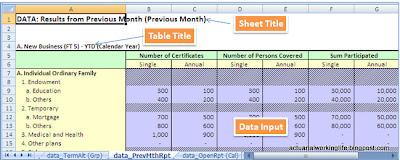
In case you are looking for some Excel / Spreadsheet tips on how to make your templates more efficient, perhaps you can get some ideas from the tips I share below. Afraid of bombastic command or VB coding? Don't worry, the tips I share below are very simple and you don't need to be an expert to use the tips. The following tips use examples from the template I used to compile movement of policy (MOP) statistics (i.e. new business, in force business & termination/alteration) . However, you may apply the same ideas for other types of templates as well. Tips (1): Produce results by plan code level, not product group Normally, the MOP statistics are reported in specific product groups, such as "Whole Life", "Endowment", "Temporary" etc. in BNM Form L6-L8 (Conventional Insurance) / FT5-FT7 (Takaful). It is common for us to group our data by the required product groups using data processing applications (e.g. FoxPro, Data Conversion System ...